B2B Sales Reps - The Claude Connectors Worth Turning On (2026)
Which sales tools plug into Claude, which ones a rep can turn on alone, and the three to connect first.
You've probably heard Claude can "connect" to your sales tools now. Then you open the list and it's a wall of logos, some of them need your IT team, and none of it says where a rep on their own should start.
Here's the short version, checked October 29, 2026.
What a connector does
MCP, connector, plugin. You've probably heard all the different terms. In this case, we'll stick with connector. For what you'll do here, it's all the same.
A connector lets Claude read and work in another tool, so you stop pasting things into the chat. Connect your email and Claude can find the last thread with a buyer. Connect your CRM and it can pull your open deals. It only sees what you can already see in that tool, and you choose what it can change.
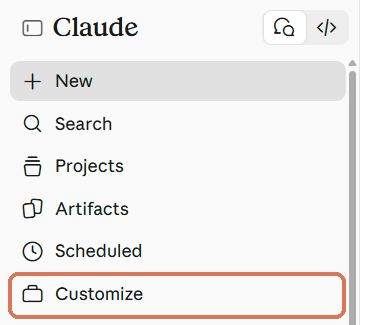
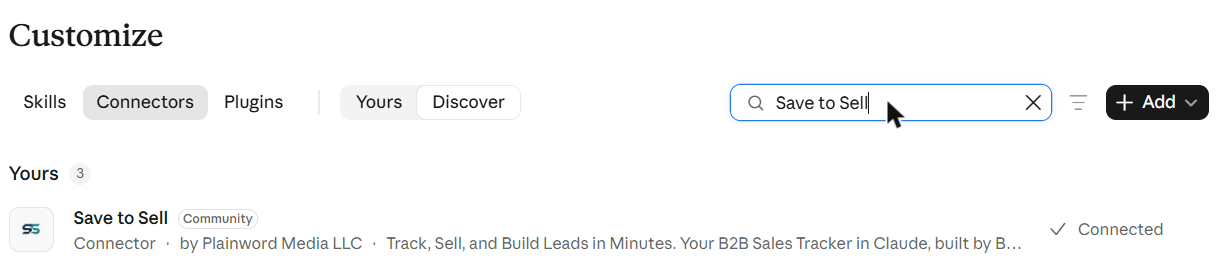
To turn one on in Claude: open Customize, then Connectors, find the tool and click Connect. You sign in to that tool once and you're done. About two minutes each.
One thing to know first: if your company pays for Claude on a Team or Enterprise plan, an owner has to switch each connector on for everyone before you can use it. On your own Pro plan, you decide.
CRM: where your deals live
HubSpot. Searches and updates contacts, companies and deals. A HubSpot admin approves it, then each rep signs in.
Salesforce. Works, but plan on your Salesforce admin setting it up first. Not a rep only project.
Close, Attio and Zoho CRM. Each has a connector in Claude's directory. Good fits for smaller teams that run their own CRM.
Email and calendar
Gmail and Google Calendar. Claude can search your inbox, sum up a long thread, draft a reply for you to approve, and check your week.
Microsoft 365. Outlook mail and calendar, plus Teams and OneDrive, in one connector.
Call notes
Granola, Fathom, Fireflies and Otter. If you record calls with one of these, connect it. Claude can pull what the buyer said three weeks ago before you call back.
Prospecting
Apollo, ZoomInfo and Clay. Useful for finding the right person and their details. What the connector can do depends on the plan you pay for, so check yours before you count on it.
If you don't have a CRM, or can't touch the company one
This is the gap most lists skip. A lot of reps keep their real list in a spreadsheet, a notebook or their head, because the company CRM is built for the manager's report, or there isn't one.
Save to Sell is a sales tracker built for that rep, and its Claude connector is free on every plan. You can ask "who's due for a follow up today?", log a call as you walk out of a meeting, and have the next email drafted in your own voice. Find it in Claude's directory by searching Save to Sell.
The WhatsApp feature within Save to Sell is a game changer too. I know a lot of new apps are starting to do this, but not sure what took so long. I still have a few clients throughout Europe and North America who utilize WhatsApp, and that's their preferred method to text. These updates go into my tracker with one quick import with a dedicated WhatsApp button. Full disclosure, I helped Save to Sell put together this feature.
Where I'd start
- Your email. It's where the history is.
- Your calendar. So Claude knows your week.
- Wherever your leads live, the CRM or your own tracker.
Get those three working before you add anything else.
One setting to change on day one
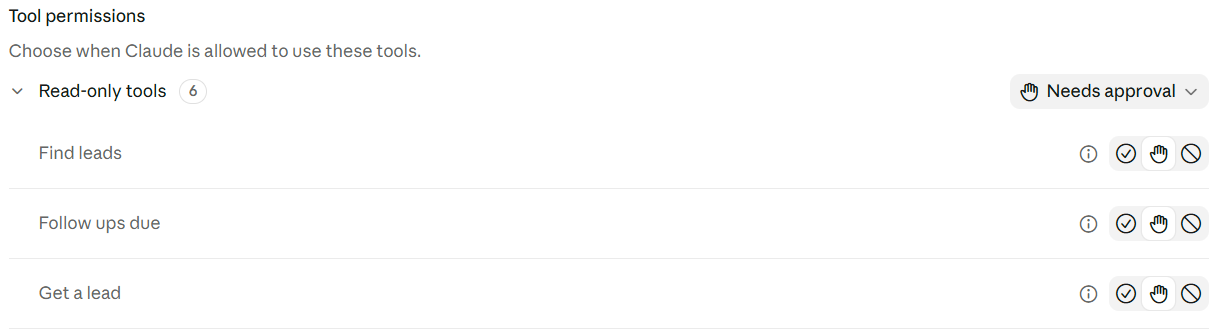
In Claude, every connector tool can be set to Always allow, Needs approval or Blocked. Set anything that sends, changes or deletes to Needs approval. Claude will ask before it acts, and nothing goes to a buyer without you seeing it.
Five prompts to run first
Once you're connected, the first prompt I'd run is this one: "Look at my calendar for today and at my CRM or tracker for every lead that is due for a follow up today or overdue."
I put it and four more (catch me up before a call, log what just happened, write the follow up in my voice, and my week on one page) in a free PDF, The Claude Connector Starter Kit.
Get it free: natebrannock.com/claude-connector-kit
Your Turn
Which tool do you wish Claude could reach that isn't on this list? Email me at [email protected] and I'll check it for the next update.
Nate
P.S. If someone on your team is still copying and pasting deal notes into Claude, send them this.
How to add a connector to Claude (Save to Sell as the example)
1. Open Claude and click Customize in the left sidebar.
2. Click Connectors, then search for Save to Sell.
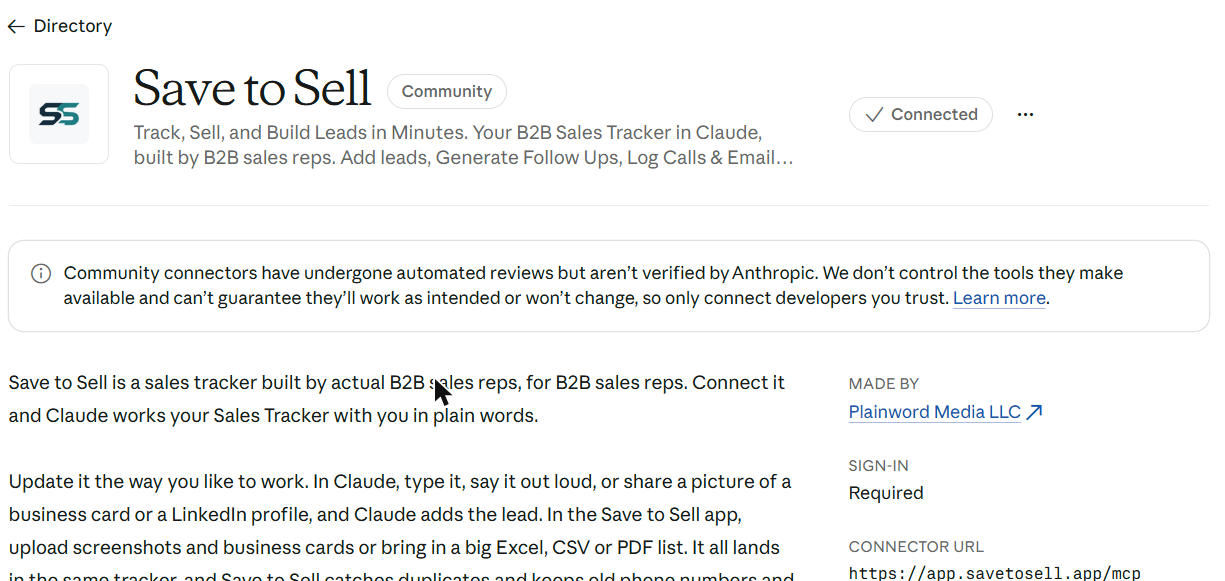
3. Open Save to Sell and click Connect. Sign in to your Save to Sell account and tap Allow. When it's done, the button says Connected.
4. Under Tool permissions, set anything that sends or changes something to Needs approval, so Claude asks before it acts.
5. Start a new chat and ask: "Who's due for a follow up today?"
Every connector in this list
- Save to Sell: claude.ai/directory/save-to-sell
- HubSpot: claude.com/marketplace/connectors/hubspot
- Salesforce: claude.com/marketplace/connectors/salesforce-headless-360
- Close: claude.com/marketplace/connectors/close
- Attio: claude.com/marketplace/connectors/attio
- Zoho CRM: claude.com/marketplace/connectors/zoho-crm
- Gmail: claude.com/marketplace/connectors/gmail
- Google Calendar: claude.com/marketplace/connectors/google-calendar
- Microsoft 365: claude.com/marketplace/connectors/microsoft-365
- Granola: claude.com/marketplace/connectors/granola
- Fathom: claude.com/marketplace/connectors/fathom
- Fireflies: claude.com/marketplace/connectors/fireflies
- Otter: claude.com/marketplace/connectors/otter-ai
- Apollo: claude.com/marketplace/connectors/apollo
- ZoomInfo: claude.com/marketplace/connectors/zoominfo
- Clay: claude.com/marketplace/connectors/clay
One Short Email a Week
What's new in AI for B2B sales and how to use it, with one idea to try. Free.
You're in.
The next Monday Brief lands in your inbox Monday morning. If you don't see it, check your promotions or spam folder and drag it to your inbox once.